
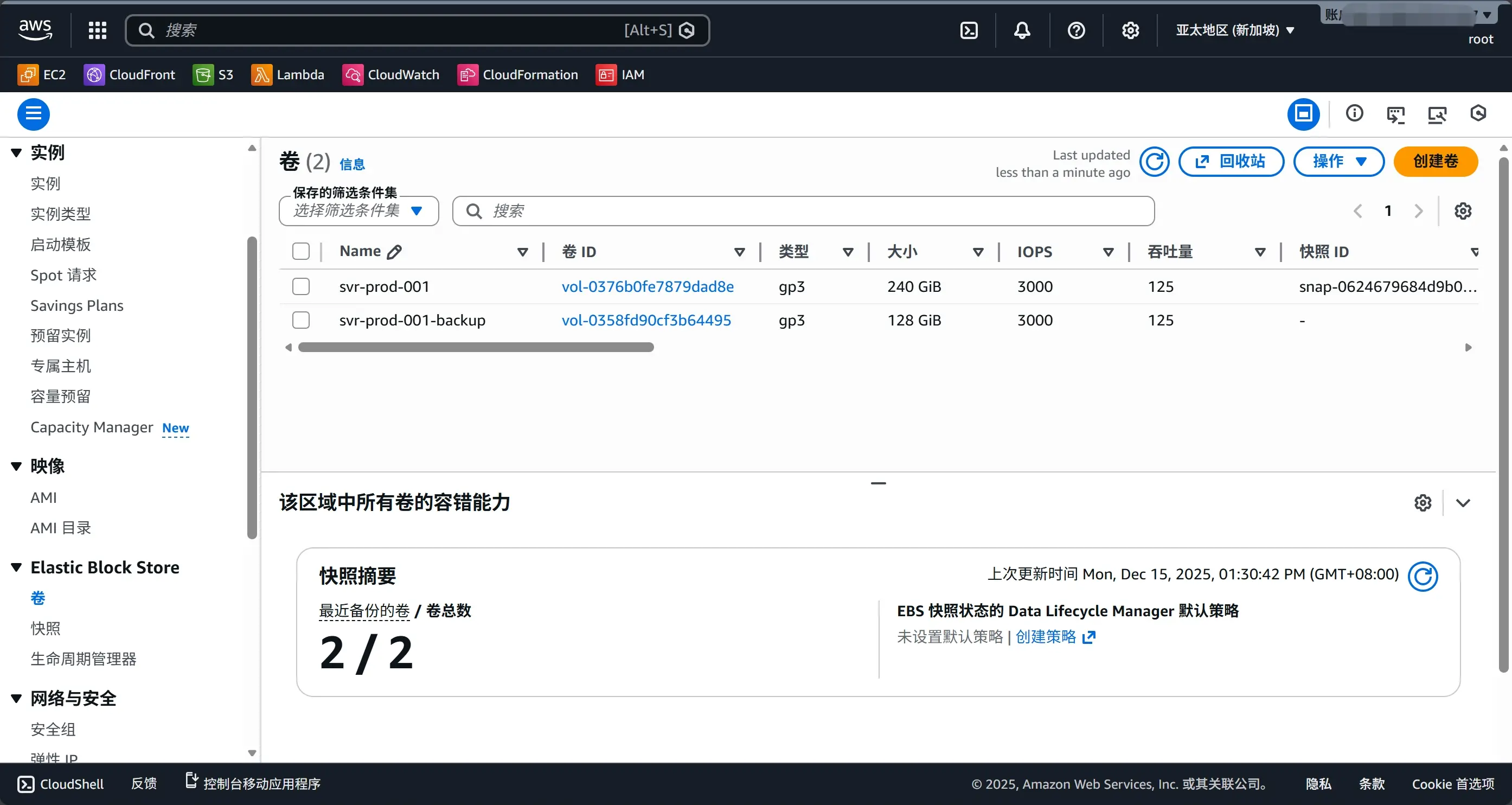
本次按客户要求,需要对 EBS 卷进行缩容处理(缩容后已配置容量为128GB),但因为 AWS 不支持对同一个 EBS 卷缩容(只能扩容),且 CentOS 7.9 文件系统根分区默认类型是 XFS,XFS 本身也不支持缩小文件系统,只能采用迁移/重建,因此撰写本文说明相应的处理方法。
Prerequisite
- AMI:
ami-03427ba8bf23b71c0(Sherpa CentOS 7.9.2009 x86_64 0.3.0) - 当前根卷:EBS 240 GiB(根分区文件系统为 XFS)
- 一台正在运行中的 EC2 实例(设备名可能显示为
/dev/nvme0n1) - 操作前为旧根卷创建 Snapshot(强烈建议,避免误操作导致无法回滚)
主要思路:创建一个新的 128GB EBS 卷 → 把原根卷数据迁移过去 → 让新卷具备引导能力(GRUB/FSTAB/UUID)→ 停机切换根卷启动。
确认根分区文件系统类型以及启动方式
EC2 控制台也可看见启动类型方式,此处不多说
# 1) 看根分区的文件系统类型(ext4 / xfs 很关键)
lsblk -f

# 2) 再确认挂载与设备对应关系
findmnt -n -o SOURCE,TARGET,FSTYPE /

# 3) 看是否是 UEFI/BIOS 启动(影响是否需要 EFI 分区)
[ -d /sys/firmware/efi ] && echo "UEFI" || echo "BIOS"

# 4) 看引导相关分区情况(当前你是 MBR/dos label)
fdisk -l /dev/nvme0n1
[root@ip-172-31-8-5 ~]# fdisk -l
Disk /dev/nvme0n1: 257.7 GB, 257698037760 bytes, 503316480 sectors
Units = sectors of 1 * 512 = 512 bytes
Sector size (logical/physical): 512 bytes / 512 bytes
I/O size (minimum/optimal): 512 bytes / 512 bytes
Disk label type: dos
Disk identifier: 0x000b0d11
Device Boot Start End Blocks Id System
/dev/nvme0n1p1 * 2048 503316446 251657199+ 83 Linux
[root@ip-172-31-8-5 ~]# df -h
Filesystem Size Used Avail Use% Mounted on
devtmpfs 1.8G 0 1.8G 0% /dev
tmpfs 1.9G 16K 1.9G 1% /dev/shm
tmpfs 1.9G 17M 1.8G 1% /run
tmpfs 1.9G 0 1.9G 0% /sys/fs/cgroup
/dev/nvme0n1p1 240G 19G 222G 8% /
tmpfs 370M 0 370M 0% /run/user/1000
[root@ip-172-31-8-5 ~]# lsblk -f
NAME FSTYPE LABEL UUID MOUNTPOINT
nvme0n1
└─nvme0n1p1 xfs 9cff3d69-3769-4ad9-8460-9c54050583f9 /
[root@ip-172-31-8-5 ~]# df -Th /
Filesystem Type Size Used Avail Use% Mounted on
/dev/nvme0n1p1 xfs 240G 19G 222G 8% /
[root@ip-172-31-8-5 ~]# findmnt -n -o SOURCE,TARGET,FSTYPE /
/dev/nvme0n1p1 / xfs
[root@ip-172-31-8-5 ~]# [ -d /sys/firmware/efi ] && echo "UEFI" || echo "BIOS"
BIOS
[root@ip-172-31-8-5 ~]#
[root@ip-172-31-8-5 ~]# fdisk -l /dev/nvme0n1
Disk /dev/nvme0n1: 257.7 GB, 257698037760 bytes, 503316480 sectors
Units = sectors of 1 * 512 = 512 bytes
Sector size (logical/physical): 512 bytes / 512 bytes
I/O size (minimum/optimal): 512 bytes / 512 bytes
Disk label type: dos
Disk identifier: 0x000b0d11
Device Boot Start End Blocks Id System
/dev/nvme0n1p1 * 2048 503316446 251657199+ 83 Linux创建并挂载新EBS卷
创建新卷
在 AWS Console:
- EC2 → Elastic Block Store → Volumes → Create volume*
- Size:128 GiB
- Type:建议 gp3
- Availability Zone 必须与当前实例相同
- Create
挂载到当前实例(作为数据盘)
- 选中新建的 128G 卷 → Actions → Attach volume
- Instance:选择这台实例
- Device name:可以选
/dev/sdb(或是其它) - Attach
在系统里确认新盘名
新盘是 /dev/nvme1n1 (128G),未进行创建文件系统/分区操作
[root@ip-172-31-8-5 ~]# lsblk
NAME        MAJ:MIN RM  SIZE RO TYPE MOUNTPOINT
nvme0n1     259:0    0  240G  0 disk
└─nvme0n1p1 259:1    0  240G  0 part /
nvme1n1     259:2    0  128G  0 disk
[root@ip-172-31-8-5 ~]# fdisk -l

Disk /dev/nvme0n1: 257.7 GB, 257698037760 bytes, 503316480 sectors
Units = sectors of 1 * 512 = 512 bytes
Sector size (logical/physical): 512 bytes / 512 bytes
I/O size (minimum/optimal): 512 bytes / 512 bytes
Disk label type: dos
Disk identifier: 0x000b0d11

        Device Boot      Start         End      Blocks   Id  System
/dev/nvme0n1p1   *        2048   503316446   251657199+  83  Linux

Disk /dev/nvme1n1: 137.4 GB, 137438953472 bytes, 268435456 sectors
Units = sectors of 1 * 512 = 512 bytes
Sector size (logical/physical): 512 bytes / 512 bytes
I/O size (minimum/optimal): 512 bytes / 512 bytes
分区并格式化新卷(/dev/nvme1n1)
创建MBR主分区
和当前文件系统保持一致
fdisk /dev/nvme1n1进入 fdisk 后,按下面顺序敲(每行一个命令):
n(new)p(primary)1(partition number 1)- 回车(First sector 默认)
- 回车(Last sector 默认,使用整块盘)
a(把分区设为 bootable)1(选择分区 1)p(打印确认一下)w(写入并退出)
[root@ip-172-31-8-5 ~]# fdisk /dev/nvme1n1
Welcome to fdisk (util-linux 2.23.2).

Changes will remain in memory only, until you decide to write them.
Be careful before using the write command.

Device does not contain a recognized partition table
Building a new DOS disklabel with disk identifier 0x9ba9d3c8.

Command (m for help): n
Partition type:
   p   primary (0 primary, 0 extended, 4 free)
   e   extended
Select (default p): p
Partition number (1-4, default 1): 1
First sector (2048-268435455, default 2048):
Using default value 2048
Last sector, +sectors or +size{K,M,G} (2048-268435455, default 268435455):
Using default value 268435455
Partition 1 of type Linux and of size 128 GiB is set

Command (m for help): a
Selected partition 1

Command (m for help): p

Disk /dev/nvme1n1: 137.4 GB, 137438953472 bytes, 268435456 sectors
Units = sectors of 1 * 512 = 512 bytes
Sector size (logical/physical): 512 bytes / 512 bytes
I/O size (minimum/optimal): 512 bytes / 512 bytes
Disk label type: dos
Disk identifier: 0x9ba9d3c8

        Device Boot      Start         End      Blocks   Id  System
/dev/nvme1n1p1            2048   268435455   134216704   83  Linux

Command (m for help): w
The partition table has been altered!

Calling ioctl() to re-read partition table.
Syncing disks.
完成后让内核重新读分区表:
partprobe /dev/nvme1n1
lsblk
[root@ip-172-31-8-5 ~]# partprobe /dev/nvme1n1
[root@ip-172-31-8-5 ~]# lsblk
NAME MAJ:MIN RM SIZE RO TYPE MOUNTPOINT
nvme0n1 259:0 0 240G 0 disk
└─nvme0n1p1 259:1 0 240G 0 part /
nvme1n1 259:2 0 128G 0 disk
└─nvme1n1p1 259:3 0 128G 0 part 在新分区上创建XFS文件系统
mkfs.xfs -f /dev/nvme1n1p1[root@ip-172-31-8-5 ~]# mkfs.xfs -f /dev/nvme1n1p1
meta-data=/dev/nvme1n1p1 isize=512 agcount=4, agsize=8388544 blks
= sectsz=512 attr=2, projid32bit=1
= crc=1 finobt=0, sparse=0
data = bsize=4096 blocks=33554176, imaxpct=25
= sunit=0 swidth=0 blks
naming =version 2 bsize=4096 ascii-ci=0 ftype=1
log =internal log bsize=4096 blocks=16383, version=2
= sectsz=512 sunit=0 blks, lazy-count=1
realtime =none extsz=4096 blocks=0, rtextents=0挂载新分区到临时目录
mkdir -p /mnt/newroot
mount /dev/nvme1n1p1 /mnt/newroot
df -Th /mnt/newroot
[root@ip-172-31-8-5 ~]# mkdir -p /mnt/newroot
[root@ip-172-31-8-5 ~]# mount /dev/nvme1n1p1 /mnt/newroot
[root@ip-172-31-8-5 ~]# df -Th /mnt/newroot
Filesystem Type Size Used Avail Use% Mounted on
/dev/nvme1n1p1 xfs 128G 33M 128G 1% /mnt/newroot至此,已经完成了操作如下
- 新盘
/dev/nvme1n1已建 MBR(dos) 分区表 - 已创建分区
/dev/nvme1n1p1(128G) - 已格式化为 XFS
- 已挂载到
/mnt/newroot
rsync复制根文件系统到新盘(/mnt/newroot)
rsync -aHAXx --numeric-ids --info=progress2 \
  --exclude='/dev/*' \
  --exclude='/proc/*' \
  --exclude='/sys/*' \
  --exclude='/run/*' \
  --exclude='/tmp/*' \
  --exclude='/mnt/*' \
  --exclude='/media/*' \
  --exclude='/lost+found' \
/ /mnt/newroot/-aHAX保留硬链接/ACL/扩展属性-x不跨文件系统- 排除
/proc /sys /dev /run等伪文件系统
[root@ip-172-31-8-5 ~]# rsync -aHAXx --numeric-ids --info=progress2 \
>   --exclude='/dev/*' \
>   --exclude='/proc/*' \
>   --exclude='/sys/*' \
>   --exclude='/run/*' \
>   --exclude='/tmp/*' \
>   --exclude='/mnt/*' \
>   --exclude='/media/*' \
>   --exclude='/lost+found' \
>   / /mnt/newroot/
 17,641,858,707  97%   23.71MB/s    0:11:49 (xfr#668512, to-chk=761/724621)
file has vanished: "/home/wwwroot/test/tmp/775801c7ee724fbd904888d2fcc97f5f.apk"
 17,832,685,354  98%   23.92MB/s    0:11:51 (xfr#669145, to-chk=0/724621)
rsync warning: some files vanished before they could be transferred (code 24) at main.c(1179) [sender=3.1.2]
快速校验(抽查)
ls -lah /mnt/newroot
du -sh / /mnt/newroot
[root@ip-172-31-8-5 ~]# ls -lah /mnt/newroot
total 24K
dr-xr-xr-x. 20 root root 288 Dec 8 21:31 .
drwxr-xr-x. 4 root root 33 Dec 15 09:51 ..
-rw-r--r-- 1 root root 0 Dec 8 21:31 .autorelabel
lrwxrwxrwx. 1 root root 7 Oct 30 2020 bin -> usr/bin
dr-xr-xr-x. 5 root root 4.0K Dec 1 16:59 boot
drwxr-xr-x 2 root root 6 Dec 15 09:50 dev
drwxr-xr-x. 86 root root 8.0K Dec 14 23:14 etc
drwxr-xr-x. 5 root root 49 Dec 14 16:57 home
lrwxrwxrwx. 1 root root 7 Oct 30 2020 lib -> usr/lib
lrwxrwxrwx. 1 root root 9 Oct 30 2020 lib64 -> usr/lib64
drwxr-xr-x. 2 root root 6 Apr 11 2018 media
drwxr-xr-x. 2 root root 6 Dec 15 09:51 mnt
drwxr-xr-x. 2 root root 6 Apr 11 2018 opt
drwxr-xr-x. 2 root root 39 Dec 1 17:07 patch
dr-xr-xr-x 2 root root 6 Dec 15 09:21 proc
drw-------. 2 root root 6 Dec 15 00:16 .Recycle_bin
dr-xr-x---. 9 root root 4.0K Dec 15 09:22 root
drwxr-xr-x 2 root root 6 Dec 15 09:21 run
lrwxrwxrwx. 1 root root 8 Oct 30 2020 sbin -> usr/sbin
drwxr-xr-x. 2 root root 6 Apr 11 2018 srv
dr-xr-xr-x 2 root root 6 Dec 15 09:21 sys
drwxrwxrwt. 2 root root 6 Dec 15 09:50 tmp
drwxr-xr-x. 13 root root 155 Oct 30 2020 usr
drwxr-xr-x. 19 root root 4.0K Dec 1 17:09 var
drwxr-xr-x. 7 root root 123 Dec 1 17:06 www
[root@ip-172-31-8-5 ~]# du -sh / /mnt/newroot
du: cannot access ‘/proc/6604/task/6604/fd/3’: No such file or directory
du: cannot access ‘/proc/6604/task/6604/fdinfo/3’: No such file or directory
du: cannot access ‘/proc/6604/fd/3’: No such file or directory
du: cannot access ‘/proc/6604/fdinfo/3’: No such file or directory
37G /
[root@ip-172-31-8-5 ~]#
[root@ip-172-31-8-5 ~]# du -sh /
du: cannot access ‘/proc/1015/task/1176/fdinfo/30’: No such file or directory
du: cannot access ‘/proc/1015/task/1176/fdinfo/36’: No such file or directory
du: cannot access ‘/proc/1015/task/1547/fd/30’: No such file or directory
du: cannot access ‘/proc/1015/task/2195/fd/30’: No such file or directory
du: cannot access ‘/proc/1015/task/3157/fdinfo/30’: No such file or directory
du: cannot access ‘/proc/1015/task/3157/fdinfo/36’: No such file or directory
du: cannot access ‘/proc/1015/task/3268/fd/30’: No such file or directory
du: cannot access ‘/proc/1015/task/3268/fd/36’: No such file or directory
du: cannot access ‘/proc/1015/task/3362/fd/36’: No such file or directory
du: cannot access ‘/proc/1015/task/3507/fdinfo/30’: No such file or directory
du: cannot access ‘/proc/1015/task/3507/fdinfo/36’: No such file or directory
du: cannot access ‘/proc/1015/task/3589/fd/30’: No such file or directory
du: cannot access ‘/proc/1015/task/3589/fd/36’: No such file or directory
du: cannot access ‘/proc/1015/task/3755/fdinfo/30’: No such file or directory
du: cannot access ‘/proc/1015/task/3755/fdinfo/36’: No such file or directory
du: cannot access ‘/proc/1015/task/3995/fd/30’: No such file or directory
du: cannot access ‘/proc/1015/task/3995/fd/36’: No such file or directory
du: cannot access ‘/proc/1015/task/4372/fdinfo/30’: No such file or directory
du: cannot access ‘/proc/1015/task/4430/fd/36’: No such file or directory
du: cannot access ‘/proc/1015/task/4432/fdinfo/30’: No such file or directory
du: cannot access ‘/proc/1015/task/4432/fdinfo/36’: No such file or directory
du: cannot access ‘/proc/1015/task/5888/fdinfo/30’: No such file or directory
du: cannot access ‘/proc/1015/task/5888/fdinfo/36’: No such file or directory
du: cannot access ‘/proc/1015/task/6215/fd/30’: No such file or directory
du: cannot access ‘/proc/1015/task/6217/fdinfo/36’: No such file or directory
du: cannot access ‘/proc/1015/task/6410/fdinfo/36’: No such file or directory
du: cannot access ‘/proc/1015/task/6753/fdinfo/30’: No such file or directory
du: cannot access ‘/proc/1015/task/6753/fdinfo/36’: No such file or directory
du: cannot access ‘/proc/7064/task/7064/fd/3’: No such file or directory
du: cannot access ‘/proc/7064/task/7064/fdinfo/3’: No such file or directory
du: cannot access ‘/proc/7064/fd/4’: No such file or directory
du: cannot access ‘/proc/7064/fdinfo/4’: No such file or directory
37G /准备新根卷可启动(fstab/GRUB/initramfs)
- 让新系统的
/etc/fstab指向新分区 UUID - chroot 进去重装/刷新 grub(BIOS/MBR)
- 确保 initramfs 正常
取新旧分区 UUID
blkid /dev/nvme0n1p1
blkid /dev/nvme1n1p1

cat /mnt/newroot/etc/fstab
ls -l /mnt/newroot/boot
[root@ip-172-31-8-5 ~]# blkid /dev/nvme0n1p1
/dev/nvme0n1p1: UUID="9cff3d69-3769-4ad9-8460-9c54050583f9" TYPE="xfs"
[root@ip-172-31-8-5 ~]# blkid /dev/nvme1n1p1
/dev/nvme1n1p1: UUID="2dfb7557-008e-4e3b-a8a9-d33f5f82b885" TYPE="xfs"
[root@ip-172-31-8-5 ~]# cat /mnt/newroot/etc/fstab
#
# /etc/fstab
# Created by anaconda on Fri Oct 30 14:22:27 2020
#
# Accessible filesystems, by reference, are maintained under '/dev/disk'
# See man pages fstab(5), findfs(8), mount(8) and/or blkid(8) for more info
#
UUID=9cff3d69-3769-4ad9-8460-9c54050583f9 / xfs defaults 0 0
[root@ip-172-31-8-5 ~]# ls -l /mnt/newroot/boot
total 118300
-rw-r--r--. 1 root root 153591 Oct 20 2020 config-3.10.0-1160.el7.x86_64
drwxr-xr-x. 3 root root 17 Oct 30 2020 efi
drwxr-xr-x. 2 root root 39 Oct 30 2020 grub
drwx------. 5 root root 97 Oct 30 2020 grub2
-rw-------. 1 root root 46659099 Oct 30 2020 initramfs-0-rescue-cc2c86fe566741e6a2ff6d399c5d5daa.img
-rw-------. 1 root root 46148928 Oct 30 2020 initramfs-3.10.0-1160.el7.x86_64.img
-rw-------. 1 root root 10688009 Dec 1 16:59 initramfs-3.10.0-1160.el7.x86_64kdump.img
-rw-r--r--. 1 root root 320648 Oct 20 2020 symvers-3.10.0-1160.el7.x86_64.gz
-rw-------. 1 root root 3616707 Oct 20 2020 System.map-3.10.0-1160.el7.x86_64
-rwxr-xr-x. 1 root root 6769256 Oct 30 2020 vmlinuz-0-rescue-cc2c86fe566741e6a2ff6d399c5d5daa
-rwxr-xr-x. 1 root root 6769256 Oct 20 2020 vmlinuz-3.10.0-1160.el7.x86_64把新系统里的 /etc/fstab 从旧根卷 UUID 改成新根卷 UUID,然后在新盘上安装/重建 BIOS/MBR 的 GRUB2,确保新盘可引导
- 旧根卷 UUID:
9cff3d69-3769-4ad9-8460-9c54050583f9 - 新根卷 UUID:
2dfb7557-008e-4e3b-a8a9-d33f5f82b885
修正fstab并chroot安装GRUB2(BIOS/MBR)
修改新系统的fstab
把UUID改成新盘的
cp -a /mnt/newroot/etc/fstab /mnt/newroot/etc/fstab.bak.$(date +%F_%H%M%S)
sed -i 's#UUID=9cff3d69-3769-4ad9-8460-9c54050583f9#UUID=2dfb7557-008e-4e3b-a8a9-d33f5f82b885#' /mnt/newroot/etc/fstab
cat /mnt/newroot/etc/fstab
[root@ip-172-31-8-5 ~]# cp -a /mnt/newroot/etc/fstab /mnt/newroot/etc/fstab.bak.$(date +%F_%H%M%S)
[root@ip-172-31-8-5 ~]# sed -i 's#UUID=9cff3d69-3769-4ad9-8460-9c54050583f9#UUID=2dfb7557-008e-4e3b-a8a9-d33f5f82b885#' /mnt/newroot/etc/fstab
[root@ip-172-31-8-5 ~]# cat /mnt/newroot/etc/fstab
#
# /etc/fstab
# Created by anaconda on Fri Oct 30 14:22:27 2020
#
# Accessible filesystems, by reference, are maintained under '/dev/disk'
# See man pages fstab(5), findfs(8), mount(8) and/or blkid(8) for more info
#
UUID=2dfb7557-008e-4e3b-a8a9-d33f5f82b885 / 为chroot 准备 /dev /proc /sys
mount --bind /dev  /mnt/newroot/dev
mount --bind /proc /mnt/newroot/proc
mount --bind /sys  /mnt/newroot/sys

# 可选
mount --bind /run /mnt/newroot/run
在新盘安装grub
装到“磁盘”而不是分区,进入 chroot,在 chroot 里执行:
chroot /mnt/newroot /bin/bash

grub2-install /dev/nvme1n1
grub2-mkconfig -o /boot/grub2/grub.cfg
[root@ip-172-31-8-5 /]# grub2-install /dev/nvme1n1
Installing for i386-pc platform.
Installation finished. No error reported.
[root@ip-172-31-8-5 /]# grub2-mkconfig -o /boot/grub2/grub.cfg
Generating grub configuration file ...
Found linux image: /boot/vmlinuz-3.10.0-1160.el7.x86_64
Found initrd image: /boot/initramfs-3.10.0-1160.el7.x86_64.img
Found linux image: /boot/vmlinuz-0-rescue-cc2c86fe566741e6a2ff6d399c5d5daa
Found initrd image: /boot/initramfs-0-rescue-cc2c86fe566741e6a2ff6d399c5d5daa.img
done然后再执行一次检查:
grep -R "linux16" -n /boot/grub2/grub.cfg | head
cat /etc/fstab
[root@ip-172-31-8-5 /]# grep -R "linux16" -n /boot/grub2/grub.cfg | head
101: linux16 /boot/vmlinuz-3.10.0-1160.el7.x86_64 root=UUID=2dfb7557-008e-4e3b-a8a9-d33f5f82b885 ro console=tty0 crashkernel=auto net.ifnames=0 console=ttyS0
114: linux16 /boot/vmlinuz-0-rescue-cc2c86fe566741e6a2ff6d399c5d5daa root=UUID=2dfb7557-008e-4e3b-a8a9-d33f5f82b885 ro console=tty0 crashkernel=auto net.ifnames=0 console=ttyS0
[root@ip-172-31-8-5 /]# cat /etc/fstab
#
# /etc/fstab
# Created by anaconda on Fri Oct 30 14:22:27 2020
#
# Accessible filesystems, by reference, are maintained under '/dev/disk'
# See man pages fstab(5), findfs(8), mount(8) and/or blkid(8) for more info
#
UUID=2dfb7557-008e-4e3b-a8a9-d33f5f82b885 /完成后退出 chroot:
exit解除bind挂载
在当前系统执行:
umount -l /mnt/newroot/dev
umount -l /mnt/newroot/proc
umount -l /mnt/newroot/sys
umount -l /mnt/newroot/run 2>/dev/null || true
停机并切换根卷
建议先对旧根卷做快照备份,然后:
EC2 → Instances → 选中实例 → Instance state → Stop → 等状态变为 stopped
停机状态下进行:
- Detach 当前 240G 根卷(旧卷)
- Detach 当前 128G 新卷
- 把 128G 新卷 Attach 到该实例,设备名选择
/dev/sda1
启动实例并进行验证
lsblk
df -Th /
blkid | grep -E 'nvme0n1p1|nvme1n1p1'
[root@ip-172-31-6-131 ~]# lsblk
NAME MAJ:MIN RM SIZE RO TYPE MOUNTPOINT
nvme0n1 259:0 0 128G 0 disk
└─nvme0n1p1 259:1 0 128G 0 part /
[root@ip-172-31-6-131 ~]# df -Th /
Filesystem Type Size Used Avail Use% Mounted on
/dev/nvme0n1p1 xfs 128G 22G 107G 17% /
[root@ip-172-31-6-131 ~]# blkid | grep -E 'nvme0n1p1|nvme1n1p1'
/dev/nvme0n1p1: UUID="2dfb7557-008e-4e3b-a8a9-d33f5f82b885" TYPE="xfs"/挂载到 128G 那个分区(UUID 是2dfb...)df -h /显示容量 128G
总结
本次采用的是原机迁移,在原实例上创建并挂载新卷(较小容量),将旧卷数据同步到新卷,然后通过修改挂载/替换卷完成切换。稍微步骤少一些,但可能未能及时同步到最新的数据。
在实施迁移时,一个更稳妥的做法是:不在原实例上直接复制,而是先卸载原实例的旧卷,将“旧卷”和“新卷”都挂载到一台临时的中转实例上:
- 旧卷挂载到:
/source - 新卷挂载到:
/target - 在中转实例上执行复制(
rsync),完成后再把新卷挂回原实例替换旧卷
参考资料
如何缩减 EBS 卷容量以降低存储成本 | 亚马逊AWS官方博客